How to Effectively Manage and Organize YouTube Subscription Channels
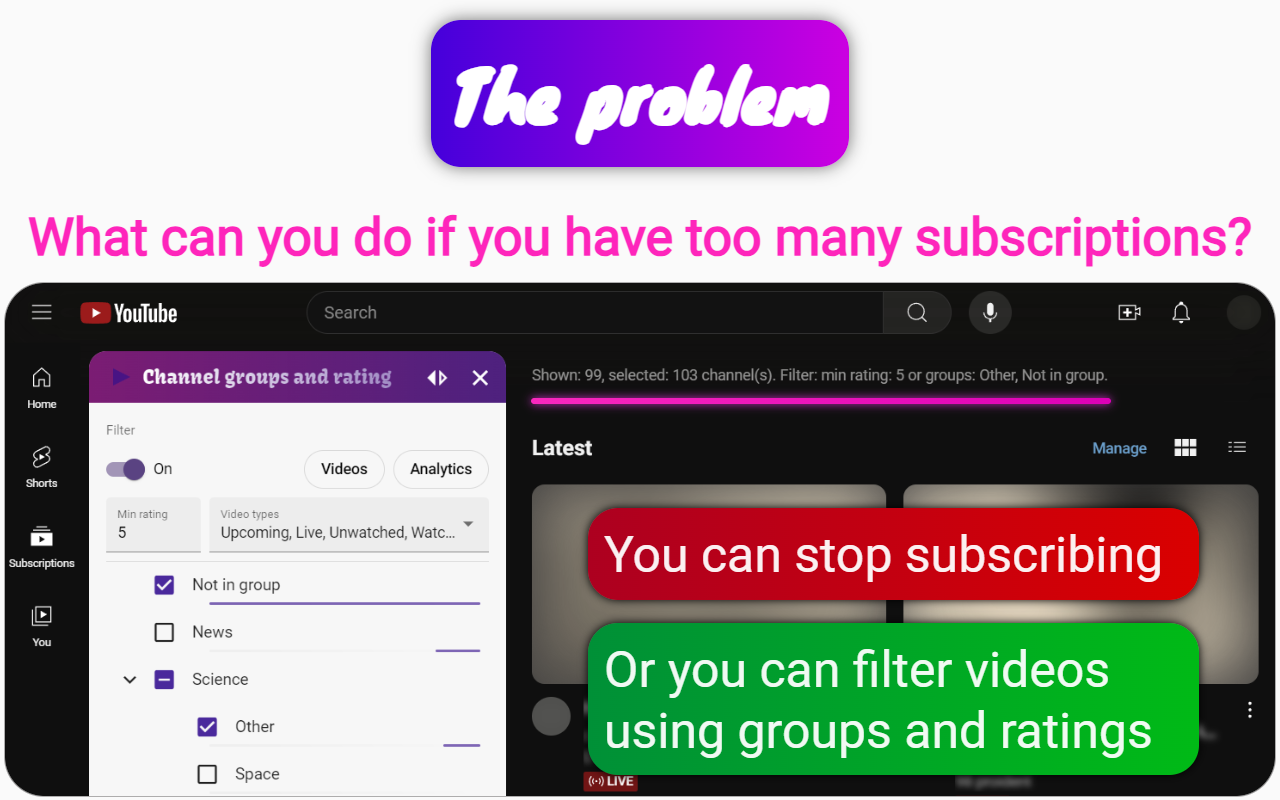
YouTube has a Manage page on the subscriptions page. On this Manage page, you see a sorted list of YouTube channels that you are subscribed to. Opposite each channel there is an unsubscribe button and options for sending notifications.
As a rule, if you have more than 10 channels, then you start to miss the channel grouping function. When you create many files on the file system, you tend to put them in a folder. And when you have many folders, then you create a separate folder for them. This makes it easier to find the file from memory. A good way to organize channels should include the function of creating YouTube folders or groups that can be placed in other groups. In YouTube itself, there is no such opportunity, or rather, it was removed several years ago.
For the function of grouping YouTube channels to appear, you must use the browser extension Channel groups and rating. As soon as you install this extension and log in, you will have 2 additional buttons on the subscription management page. These buttons will allow you to specify the folder for each subscription.
Besides YouTube folders, you can also rate subscriptions. The rating in this case shows the value of the materials of this channel.
Once you're done creating folders and rating your YouTube subscriptions, you can return to the subscriptions page and check out the new video filtering options. From now on, you can filter by YouTube folder and channel rating.
Bonus.
For YouTube channels, you can also create a dossier from comments. To create a dossier, you need to link important comments to the channel. This channel dossier will help you understand how valuable this channel is to you. If the channel turned out to be useless for you, then you will know exactly why you unsubscribed from it.